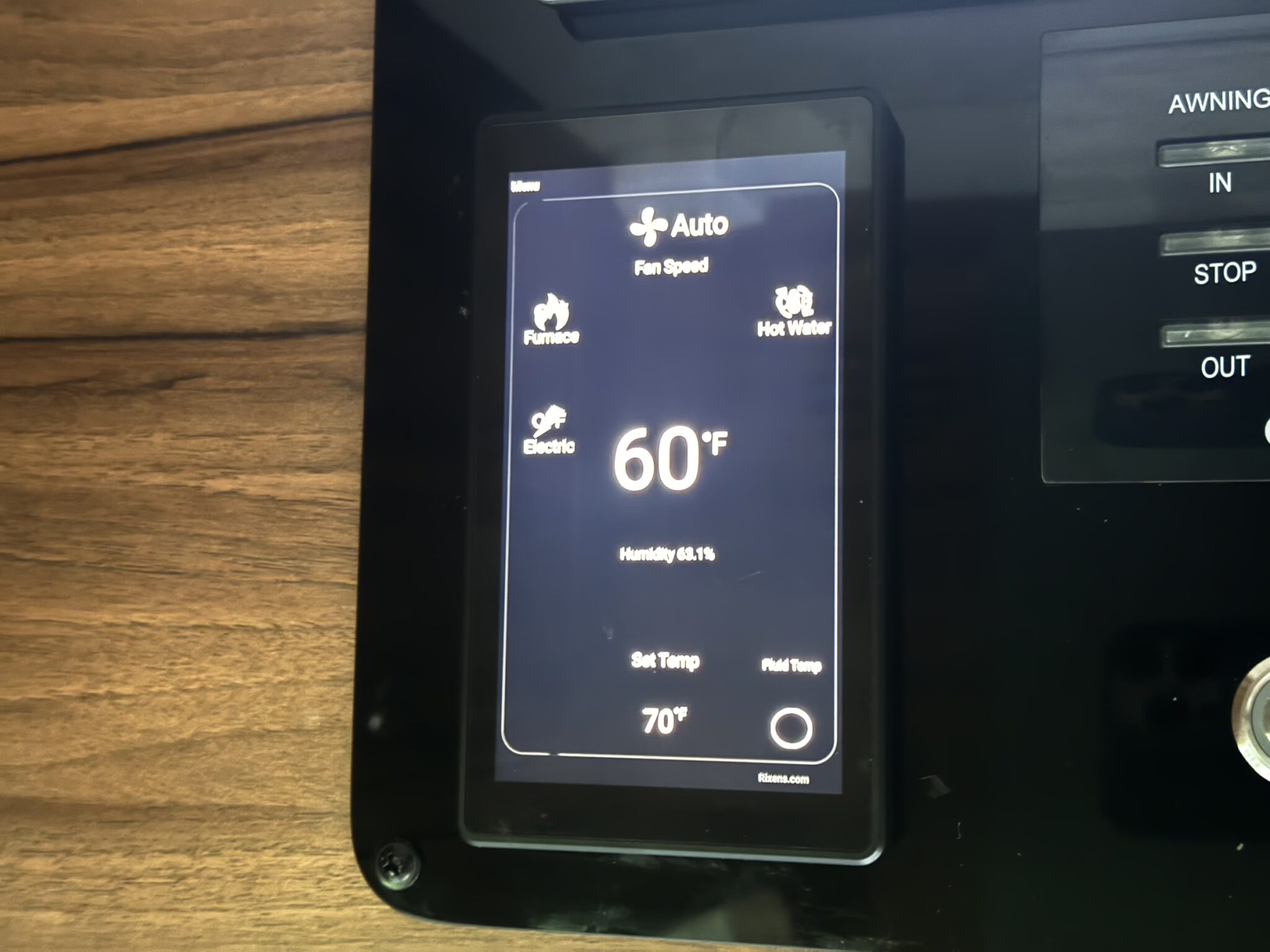

The Rixen screen on our Noovo Plus controls the heater, both the furnace and the water heater. Ours worked great until the screen went dead. We restarted it and it worked again until it went dead. After the third time in six weeks, I emailed Rixen.
(Grammatical note: The company is called Rixens, with an “s,” but I will always call it Rixen. I don’t know why.)
At first I thought that, after I pressed the “send” button, there had been some sort of e-mail malfunction. I sent the e-mail, turned my attention briefly to something else, went back to my e-mail, and there was my e-mail sitting at the top, unread. It took me a second to realize that it wasn’t my outgoing e-mail, somehow hitting my inbox, but a response from Rixen. Not an auto-response but an e-mail from Michael Rixen.
His e-mail read, in its entirety:
Hi Darin, sorry to hear about the trouble.
We can send out a replacement screen under warranty with a return label.
Can you please provide your information? First and last name, address, and phone number and I’ll send one out tomorrow.
No messing around, no asking for needless details, just straight to the best customer service solution, all in under 120 seconds. I was impressed.
Installing the screen looks scary, but it is easy. The Rixen screen sits with three other screens on a black plastic panel. You don’t need to remove the panel, the Rixen screen is held on with tape. It’s such an easy install that I almost feel goofy doing a blog post about it, but it does look intimidating at first and I do know that it has given other people difficulty.
It’s worth mentioning that if you really don’t want to do this you should call Noovo and arrange for a repair by an expert. That’s what the warranty is for, after all.
Step 1: Remove the Rixen screen
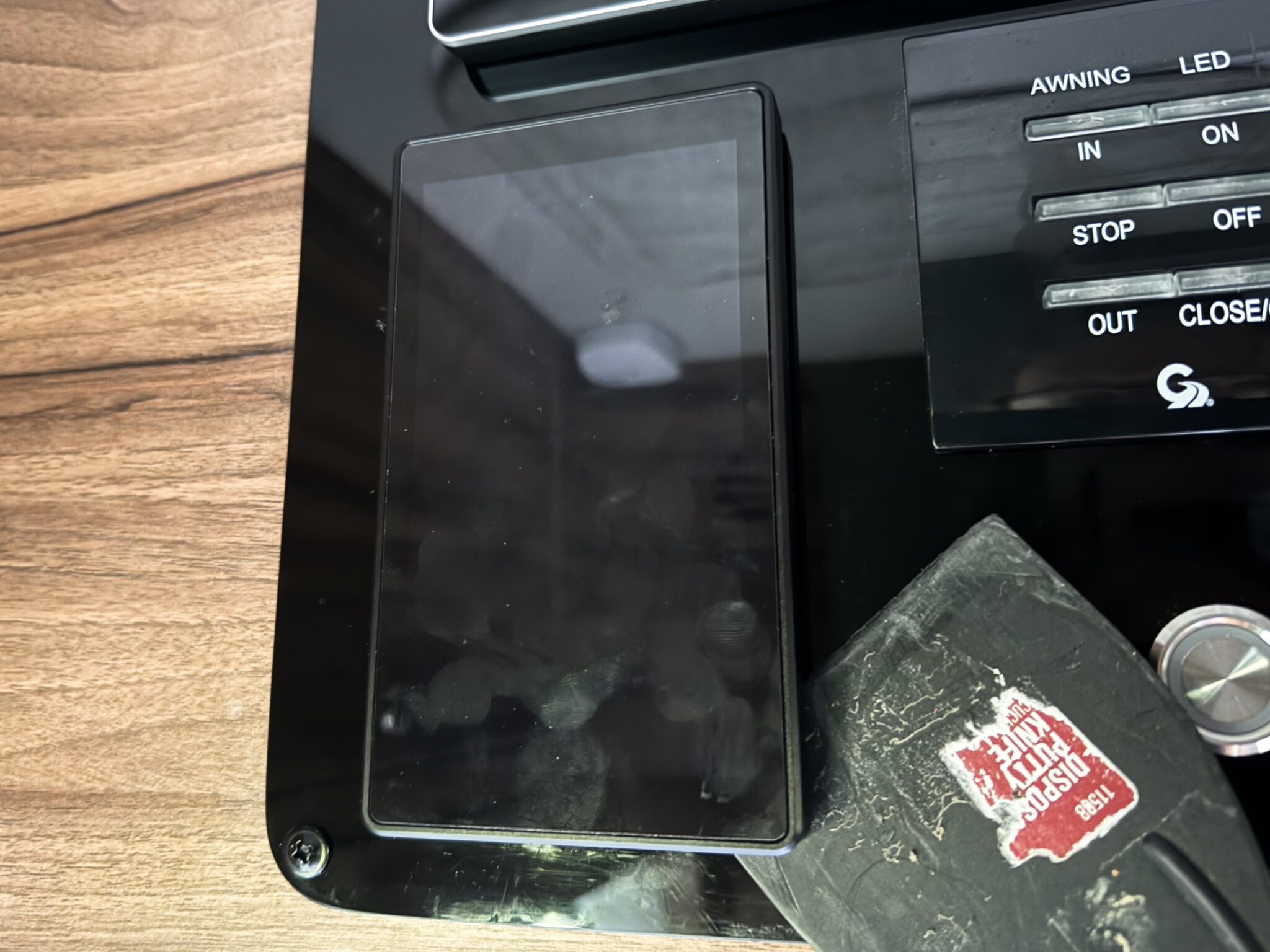
Turn the power off. Flip the solar panel breaker. Drain any residual power using the lift bed or using lights or a 12v TV. It probably won’t matter, but wise to do anyway.
The Rixen screen is held on with that black adhesive tape. To get the screen off you’ll need to use a plastic scrapper. Just jam it in the gap wherever you can and start to cut into the tape, and then work the blade around wherever you can to weaken its grip.
Important note: The panel the screen is mounted to is plastic. If you use a metal tool like a screwdriver to pry the screen up, you will most certainly damage the panel. Use the right tool, take your time.
Once it is free, unplug the cord from the unit.
Step 2: Remove the old tape
You will be able to remove much of the old tape with your fingers. Use the point of the edge of the plastic blade to cut into the tape and to scrape off all that you can. You don’t need to worry about the tape still on the Rixen unit, of course, you just want to make the surface of the panel as flat as possible in order to mount the new screen solidly to its surface.
Step 3: Replace mounting tape
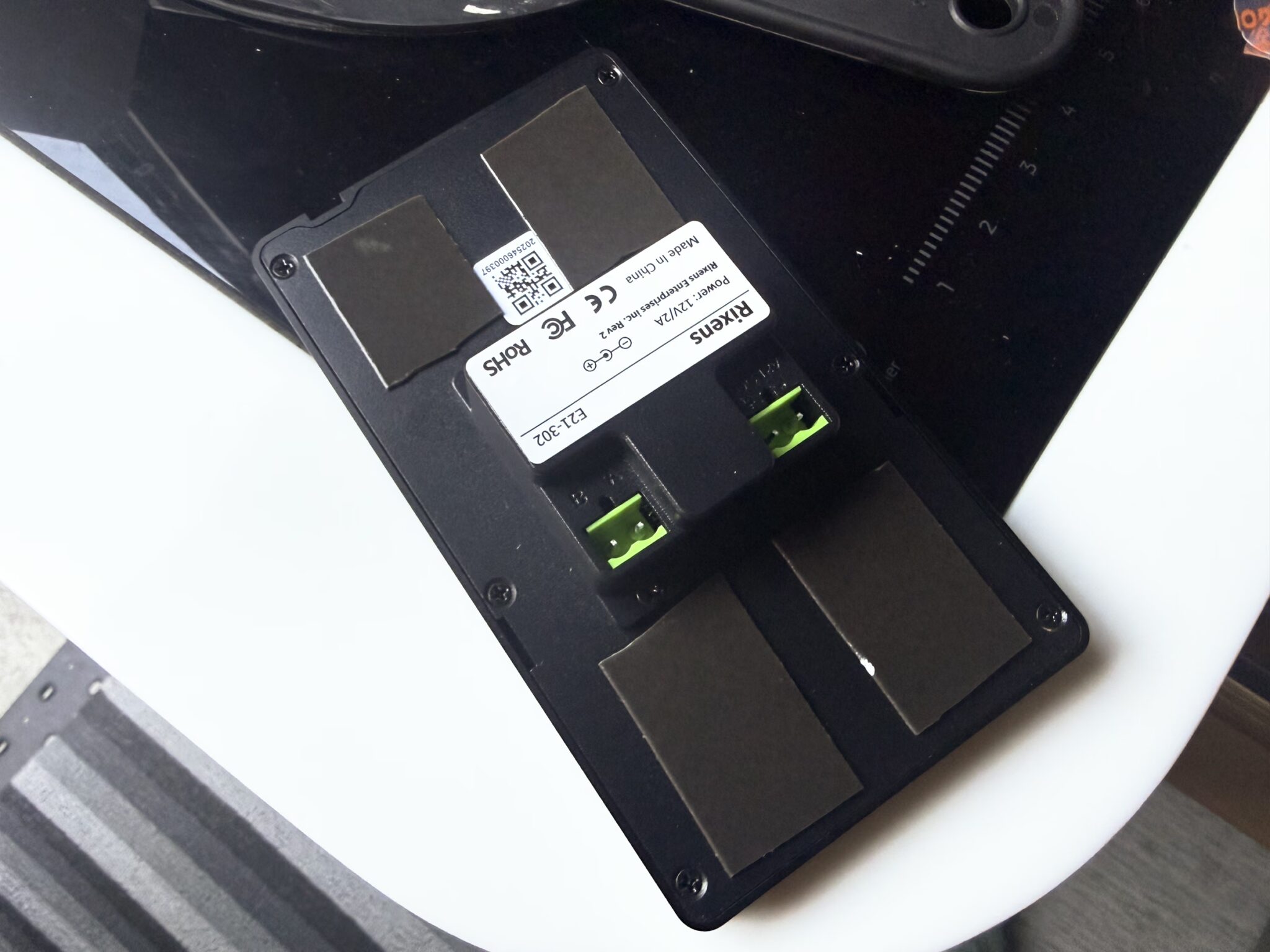
Rixen does not send replacement tape for the installation (ahem) so you have to buy your own. Rixen uses the 3M, I bought the Gorilla brand. You do not want the heavy-duty, impossible-to-remove-ever-again tape, just the regular double-sided mounting tape. Gorilla wants their tape positioned vertically on the surface—read the instructions of whatever you buy.
Step 4: Plug it in
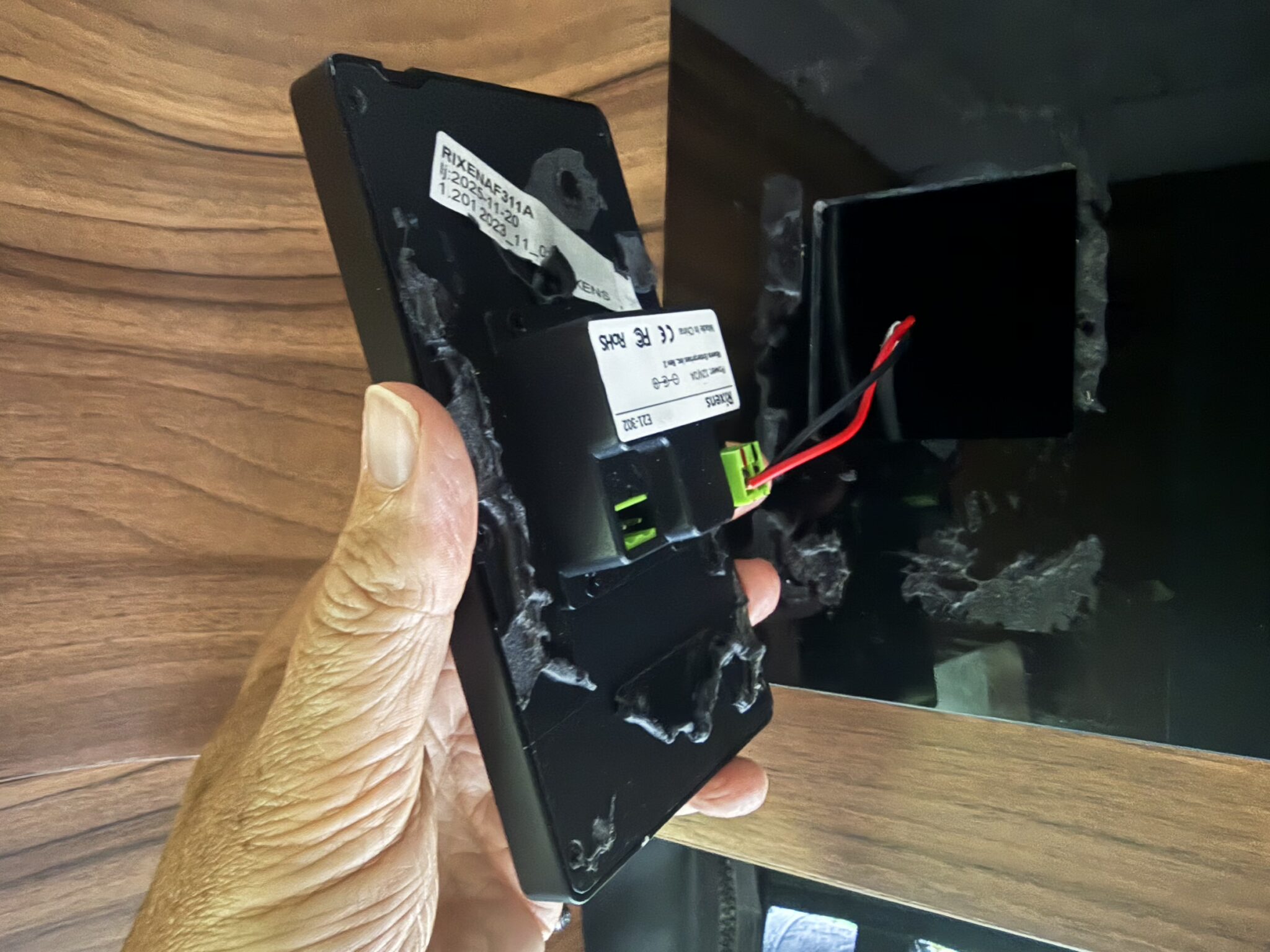
The cord is just the power cord, not a communications cord (the screen talks to the rest of the system via a dedicated wifi network). Orient the screen so that the USB-C port and the two little holes face downward (yes, the unit may appear to be upside down). In this orientation, the power cord plugs into the right port (labeled 12v).
Step 5: Mount the screen
All that is involved here is positioning the screen with the new tape attached to its back, pressing the screen against the panel, and holding it in place under a little pressure for sixty seconds for good adhesion. Be careful when positioning it to get it as squared off with the other panels as possible.
Step 6: Connecting the panel to the system
Flip the solar panel breaker to on, turn the power back on.
Once the Rixen screen boots up, you may get an error message saying that it can’t connect to wifi. It took me 30 minutes to figure this out (no instructions were sent, ahem) but all it wants is to be pointed to the Rixen wifi, not your regular wifi. There’s a setting for that. If it asks for a password, try 12341234.
And that’s it. Clean the fingerprints off the screen and panel, put your tools away, and enjoy the warmth.